Monday, March 9, 2015

Make It Monday: Clay Spoon Rest

 
I hate how disgusting the oven gets every time we cook. We don't have a spoon rest so the cooking utensils get put down on the white stove or on our counter. Pet peeve: dirty counters.

You can easily change this tutorial to suit your style. Throw in some pain, cookie cutters, etc. So let's start this week with some crafting! I dug deep into my supplies and pulled out what I needed.


-Sculpey Oven-Bake Clay in white
-Scrapbooking stamps
-Stamp ink
-Extra stamp ink lid (optional; makes stamping easier and cleaner)

Preheat oven according to the directions on your package. For Sculpey, I preheated the oven to 275 degrees. While the oven is preheating, begin shaping your clay. If you are using Sculpey brand, you will see that the clay is already split up into four or five sections. You will only need one of those sections.

Shape your clay into a spoon-like shape. and then pinch up the sides of the top.


You can either smooth out the sides of what you have pinched up, or take the lazier (yet fancy) route. I'm lazy so I pinched the edge and made it wavy. I then took the pads of my fingers and evened the surface of my spoon rest out so it appeared smooth.


Then, I picked out my scrapbook stamp and put it, flat side down, onto the extra stamp lid. Using a spare stamp lid allows a cleaner way of stamping. Make sure your spare stamp lid is clean. I dipped the stamp into ink (I chose gold) and stamped it onto my desired area.


I had to resmooth some areas where the lid's edges pushed into the clay. Then, the spoon rest was ready to go into the oven! When I'm about to bake clay, I prefer to set them on glass dishes rather than foil. It keeps the bottom flatter.


The directions for Sculpey is to bake your clay for 15 mins for every 1/4 inch of clay. My spoon rest is nearing an inch at its thickest so I set my timer for an hour. After baking, let your rest sit for another half an hour.


Now to get to cooking in order to test out your new spoon rest!


read more "Make It Monday: Clay Spoon Rest"

Saturday, December 13, 2014

Salt Dough Snowmen


If you've been reading, you know that I'm both strapped for cash and lacking Christmas decorations. So it's back to handcrafting for me!

This week I decided that I wanted some little snowman figurines to sit on top of my oven. I pulled out a basic salt dough recipe and glammed it up!

1 cup flour
1 cup salt
1/2 cup water
BAM dash of silver glitter


I start rolling the dough into balls and building my snowmen.  For arms I used the stems off of leaves. They are remotely uniform and can easily be replaced next year if need be. After building my snowmen, I pushed the ends of the stems into them to make the holes where they will go after baking. DO NOT LEAVE THE STICKS IN THE SNOWMEN WHILE BAKING.


I even made a fat snow cat!
 I baked them at 250 F for 2 hours. Once they were done baking, I pulled out my puff paint and went to work on them. I went classic coal eyes and carrot noses. I gave the mother and daughter pink bows and their heads and the father has a yellow bow tie.


They began drooping a little while baking, making them look almost melted. I just say that it's the parents running after the kid!
read more "Salt Dough Snowmen"

Saturday, November 8, 2014

Image Mapping Tutorial


Here's a little disclaimer: I've learned all that I will explain here by trial and error, and simply playing with it. If you know this sort of thing better than me, pleasepleaseplease comment below and share for easier techniques! Always remember to back-up your blog before editing!

I've been doing some work on my sidebar lately, and have decided to venture into the world of image mapping. Using image mapping allows me to have fewer image codes in my layout - my social media icons (from here) are all one clean image. Before cleaning it up, my images weren't completely centered and I wanted to scoot my social media icons to under my picture.

Click to enlarge

So I went to Photoshop and plopped them all into one image. I added a Facebook button, since I've recently made a new Facebook page for LWC Wonderland!

Click to enlarge

Now I need to make my social media icons click-able. This is where image mapping comes in handy! I went to Imgur and loaded my new sidebar photo up there. (Remember to save it as a .png file first!)  In another tap, I opened up an image mapping site and pulled up the exact same file I upladed onto Imgur. I clicked "Start Mapping" and then "Click to continue" on the next page. Finally, I'm on the page where I will map my picture. Right click to get the menu you need, and then click on "Create Rect" or "Create Circle" if you want. I decided on creating a rectangle despite the fact that my icons are circles because it will give me a little bit more "click-able" room.

Click to enlarge

A little box will appear. I move it over my first icon and move the corners until it covers the area I desire. You can drag the dialogue box out of the way if you need to.

Click to enlarge

Hit save on the dialogue box. Do the same thing for each of your icons. If you do not like how one of your boxes turned out, you can double click it to edit.

Click to englarge

Once you have finished mapping your boxes, right click and select "Get Codes". A large dialogue box will appear. Select the middle tab that says "HTML Code" and scroll all the way to the bottom of your dialogue box using the exterior page's scroll bar. Oh, look, there's all the HTML mumble-jumble.

Click to enlarge...but do you really want to see a larger picture of html?

Open your Blogger layout and either open the gadget where you will be throwing this data or create an HTML/JavaScript gadget. Clear out your previous social media icons and, in my case, your photo and bio.

Click to enlarge

Then, paste the first two lines of code. You will then replace the image map link with your Imgur link (but only the code between src and png. Mine looked like this:

<img id="Image-Maps-Com-image-maps-2014-10-10-164234" src="//i.imgur.com/qUVQw3G.png" border="0" width="390" height="1315" orgWidth="390" orgHeight="1315" usemap="#image-maps-2014-10-10-164234" alt="" />

<map name="image-maps-2014-10-10-164234" id="ImageMapsCom-image-maps-2014-10-10-164234">

Get your Imgur code out of this box:
 
Click to enlarge

Now, here is where it starts to get tricky. Type:

<area shape="rect" coords=

After this, copy and paste the set of coordinates found in the third line of code on the image mapping site into your gadget. Then hit space and type href= and, in quotation marks, the link to your first social media site (starting with http://) according to your icons. For me this will be Twitter. Then you will type:

alt="YOUR SOCIAL MEDIA SITE" title="YOUR SOCIAL MEDIA SITE" />

The last part is what message will show when the icon is moused over, so it doesn't necessarily need to be the name of your social media site. Here is what mine looked like:

<area shape="rect" coords="0,581,68,650" href="http://www.twitter.com/bethdotlove" alt="Twitter" title="Twitter" />

Do this for all of your other links except e-mail. When you reach your email icon, you plug in your coordinates the same as before but after you type href=,then type:

"mailto:YOUR EMAIL ADDRESS HERE" alt="Email" title="Email" />.

And since you always finish what you start with HTML, add
to the end. Now save and check it out! Hope this helps you in your formatting adventures!
read more "Image Mapping Tutorial"

Monday, November 3, 2014

Paper Wreath Tutorial


I still have far too much open wall space in my new place. I can't stand the blank walls staring back at me. I played around online trying to get some ideas and BAM I found my inspiration for a pretty, cheap (as in free) wreath!

First, I had to create my wreath base.  Ideally, I would make it out of posterboard and make it larger. However, all I had on hand was a stirofoam plate...so plate it is! I trimmed off the edge, using it as my wreath base and using the inside of the plate to hold my paper scraps.

I pulled out my scrapbook paper and picked out four fall colors.


Which Lulu claimed as her own.


I then cut the paper into 4.5 in x 4.5 in squares (approximately). This tool is a lifesaver that! I had to cut so many squares.


I then gently folded my squares down the center and trimmed them to a point.


I went ahead and did a huge batch of them. So. Many. Squares.


I folded each side just slightly over the center line so they would be overlapping.


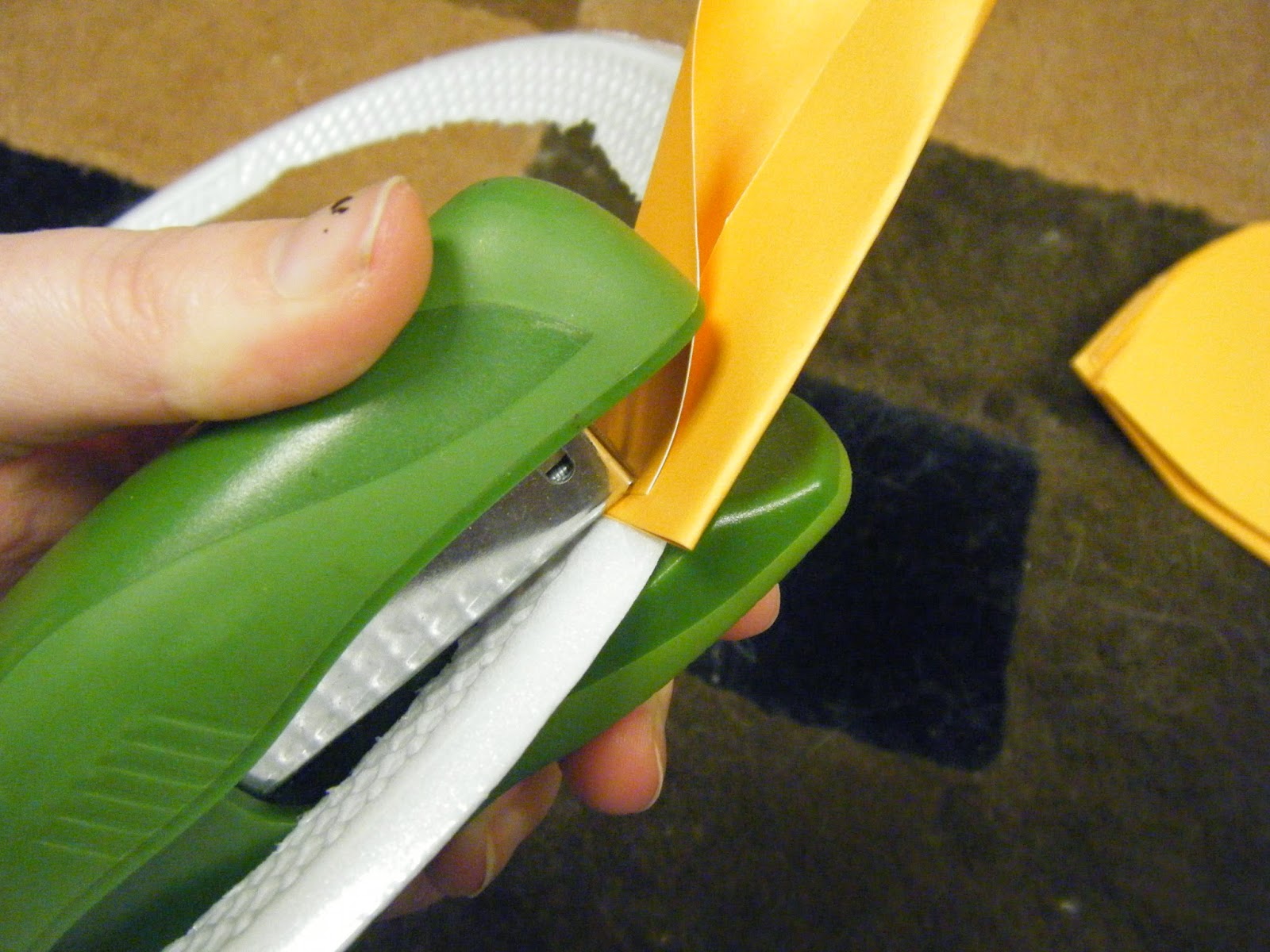
I then began stapling the pieces of paper to my wreath base.


Lulu then claimed this as her own, instead of the paper.


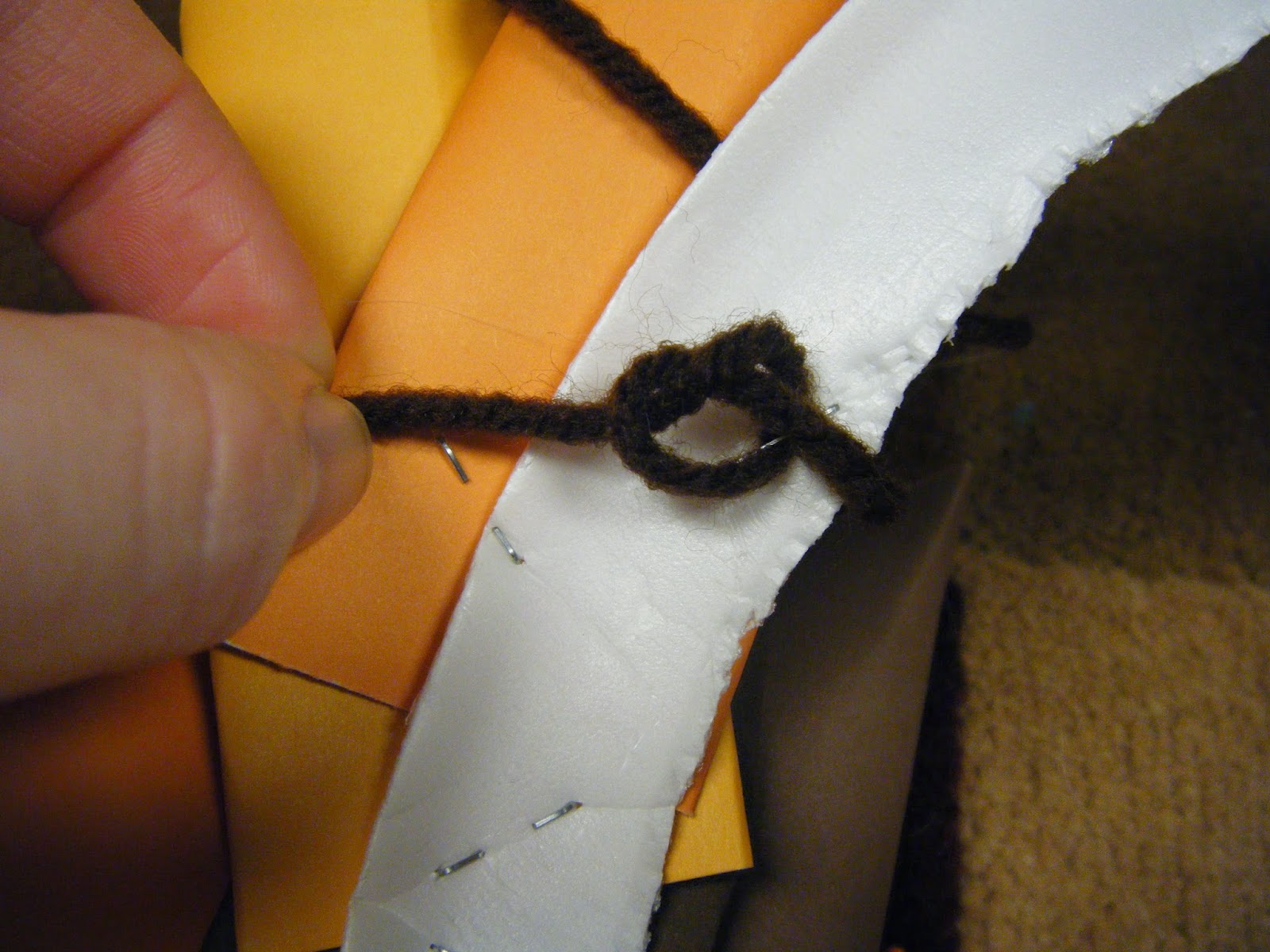
When I was about halfway through stapling the paper to the wreath base, I dug out a scrap of brown yarn and stapled it to the back of the yarn. I'll be using this to hang up my lovely wreath.


I then tied a knot in the yarn around the staple. This will keep the yarn from sliding out from under the staple.


After continuing to staple my pieces of paper to my wreath base, I finish by stapling the last piece of paper ON TOP OF the first (or first couple) pieces of paper.


And BAM! I'm done. Please let me know if you have any questions!


read more "Paper Wreath Tutorial"